Fig. 01 · iPhone · iPad · Apple Watch

Training by design.

The coach designs the workout, follows every session and adjusts what needs adjusting. The client trains with sets, load and rest on screen, on iPhone and Apple Watch.

Download on the App Store See the Four Phases

For coaches, designing workouts and following the squad is free. See Plans

Fig. 02 · In motionGymSquad · 02/12

See the app
before you download.

In 27 seconds: the Today screen, the set, the coach’s audio note, the squads, the clients, the programs and Apple Watch.

Demo data
Fig. 03 · The phasesGymSquad · 03/12

Adjust the workout to
what the client actually did.

The client logs every set in the app, and the coach sees that data before changing the workout.

  1. 01Coach

    Designs

    Builds the workout with exercises, sets, reps, load and rest. It stays a draft until it’s time to publish.

  2. 02Client

    Trains

    Opens the day’s workout and follows it set by set. Rest counts down on its own, online or offline.

  3. 03Coach

    Follows

    Sees who trained, who hasn’t yet and the adherence to each workout, with no messages to chase.

  4. 04Coach

    Adjusts

    Revises the workout based on what was done and schedules the next program with a start date.

Fig. 04 · Phase 1 · DesignGymSquad · 04/12
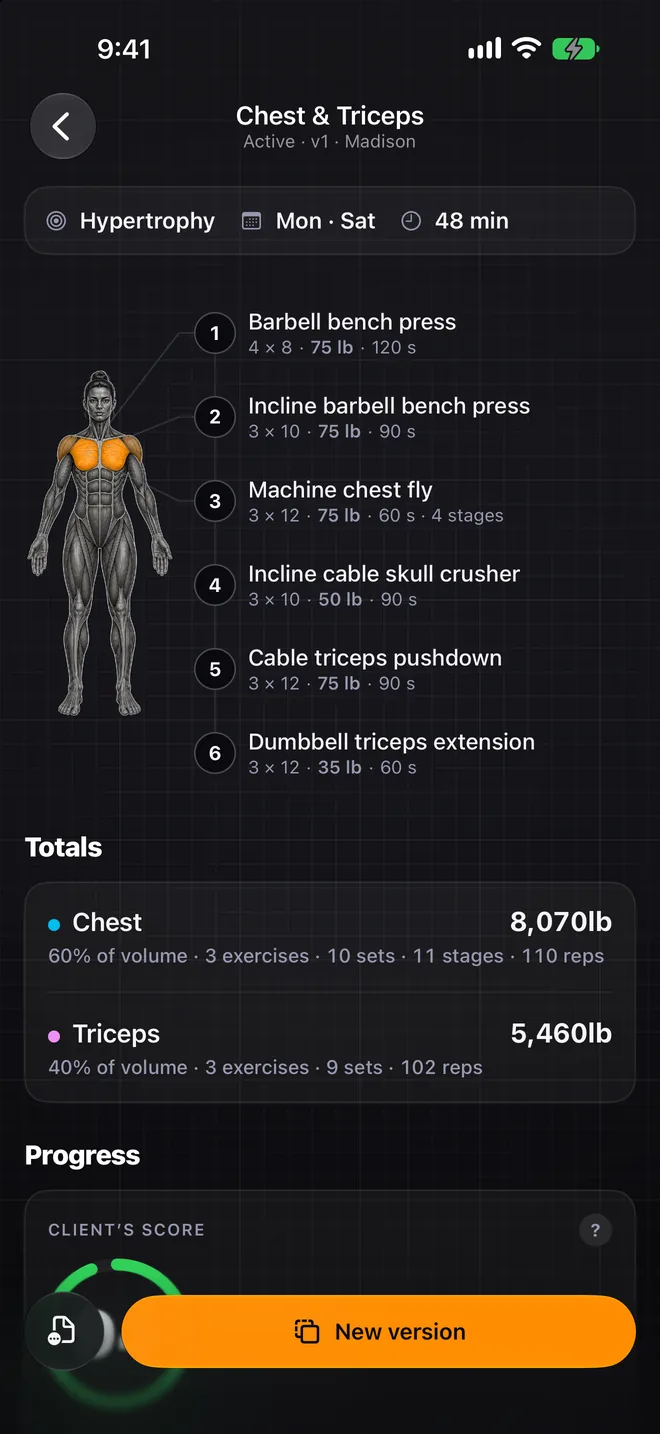
The Chest & Triceps workout in the coach’s app: six exercises with sets, load and rest, the muscles worked and the volume per muscle group
Demo data

Phase 1 · Coach

Have the workout ready before your client arrives.

The workout holds the exercise, sets, reps, load and rest, and shows the muscles it works.

  1. 01
    Complete workoutExercise, sets, reps, load and rest time, defined one by one.
  2. 02
    Advanced techniquesPick a drop set on the workout and the app works out the load for each drop.
  3. 03
    Audio noteUp to 60 seconds of guidance recorded on the workout or on an exercise, to explain the execution once.
  4. 04
    Programs with datesBlocks of 4 to 12 weeks. On the set date, the program’s workouts are published and the previous ones archived.
Fig. 05 · Phase 2 · TrainGymSquad · 05/12
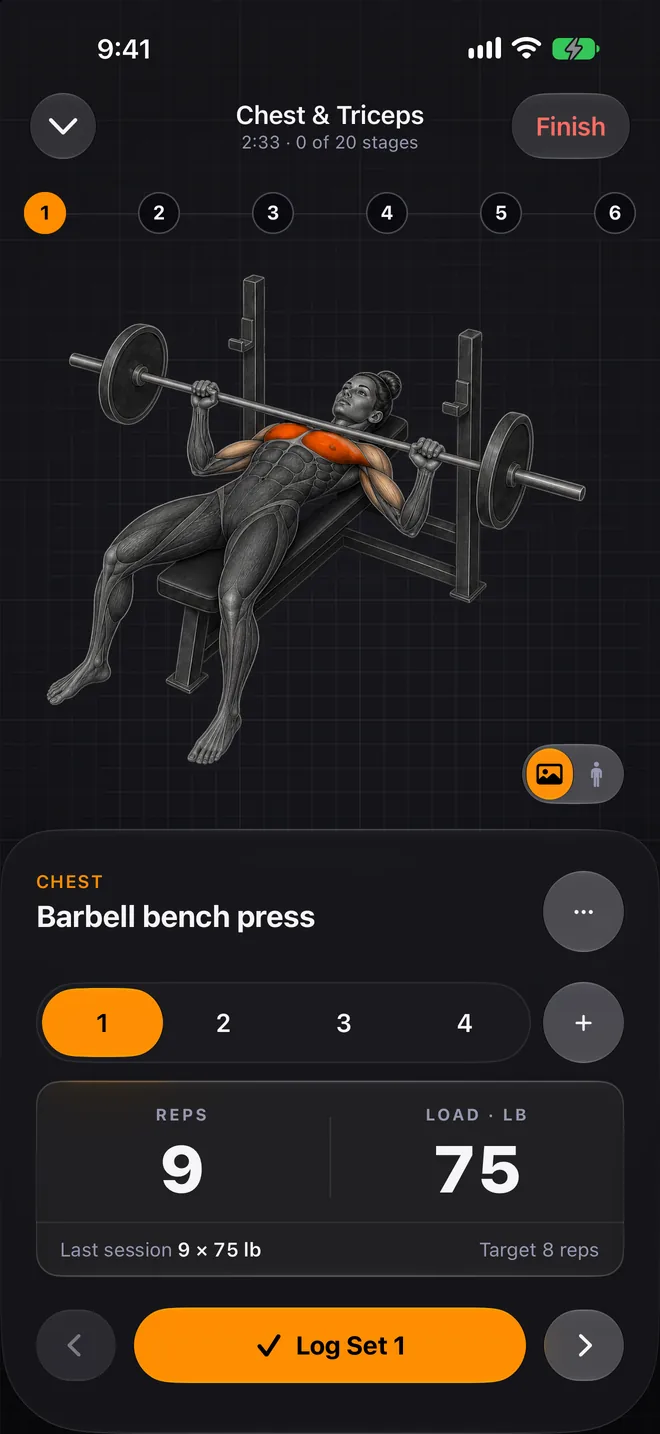
A workout in progress on iPhone: barbell bench press, set 1 of 4, 9 reps at 75 lb and the Log Set button

Phase 2 · Client

Know what weight to load every set.

Each set shows the load and reps from your last session.

  1. 01
    Set by setReps and load for each set on screen, logged with one tap.
  2. 02
    Automatic restLog the set and the timer starts. Add or remove 15 seconds, and the alert arrives with the iPhone locked.
  3. 03
    On the Lock ScreenThe current set and the rest timer stay in the Live Activity and the Dynamic Island, with buttons to log the set and skip rest.
  4. 04
    OfflineThe workout is saved on the device and syncs on its own when the connection is back.
Fig. 06 · Apple WatchGymSquad · 06/12
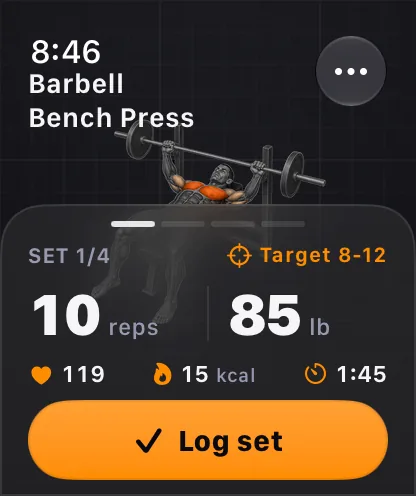
Barbell bench press on Apple Watch: set 1 of 4, 10 reps at 85 lb, heart rate, calories, time and the Log set button

Phase 2 · On the wrist

Train with your phone in your pocket.

On Apple Watch you log the set and see your rest and heart rate.

  1. 01
    Double TapLogs the set without touching the screen, and rest starts counting.
  2. 02
    Heart rate, calories and timeOn a single line, during the set.
  3. 03
    Health appThe workout is saved there at the end, with the effort from 1 to 10 the client reported.
Fig. 07 · Phase 3 · FollowGymSquad · 07/12
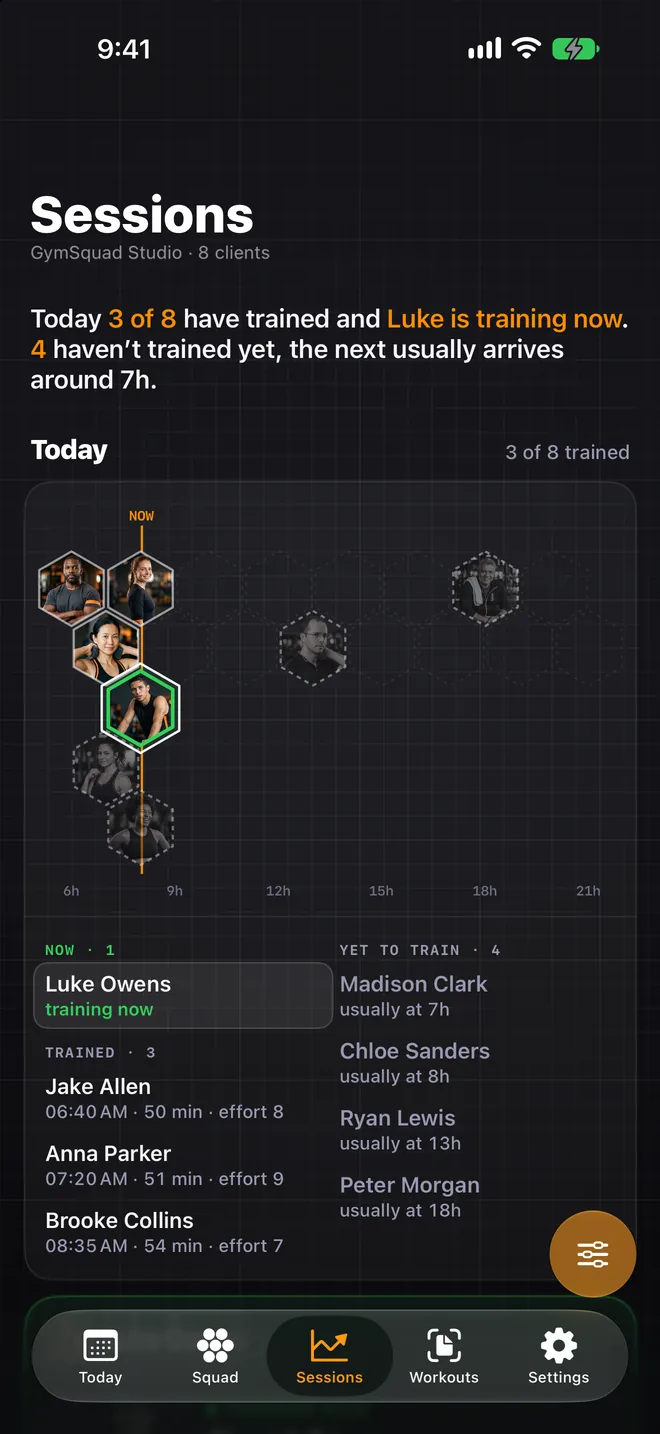
The coach’s Sessions tab: who has trained today, who is training now and who is still to train
Demo data

Phase 3 · Coach

Spot who stopped training before they quit.

The Sessions screen shows who has trained today, who is training now and who is still to come.

  1. 01
    Who trained, who hasn’tThe day’s list separates clients who already trained from those still to train.
  2. 02
    Adherence and absenceAdherence to each workout and how many days since each client’s last session.
  3. 03
    Progress ScoreProgress on the workout, from 0 to 100, compared with the person’s own baseline.
  4. 04
    Records and achievementsA personal record is flagged on the spot, and bronze, silver and gold medals reward consistency.
Fig. 08 · Phase 4 · AdjustGymSquad · 08/12
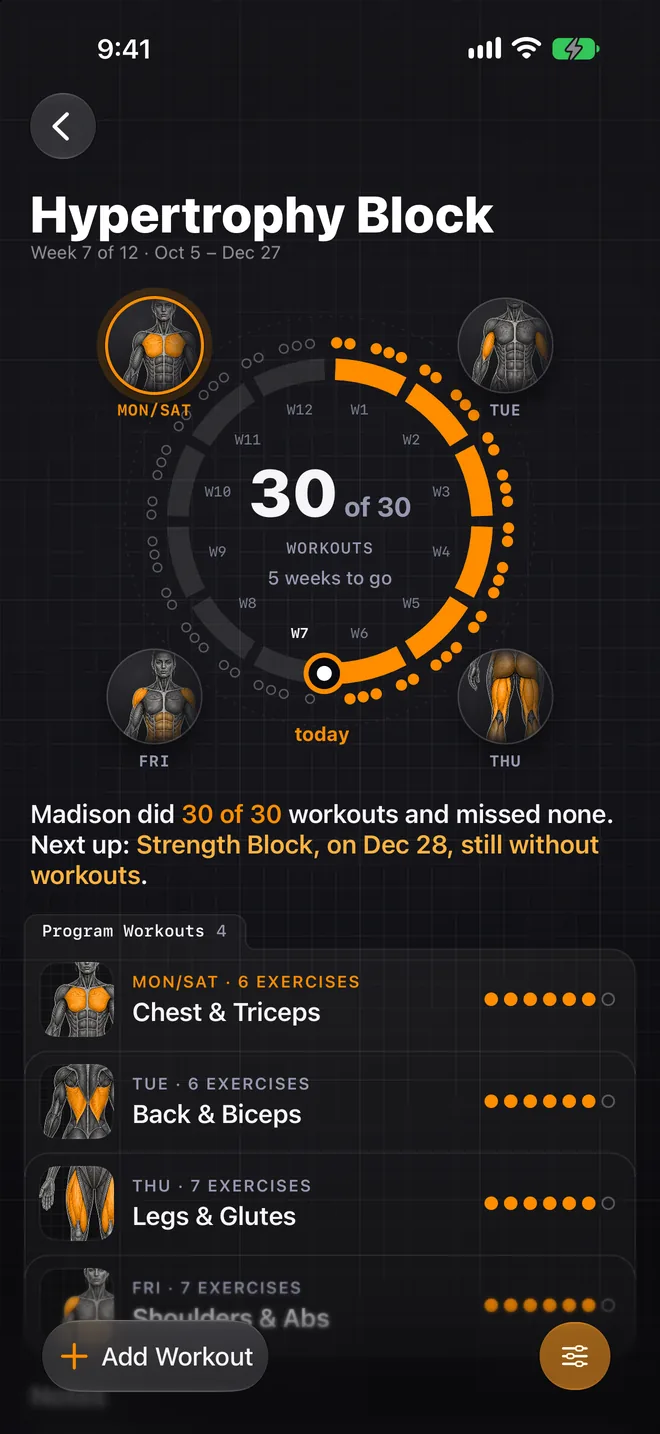
Hypertrophy Block in the coach’s app: 30 of 31 workouts done, the next block with its date and the program’s workouts
Demo data

Phase 4 · Coach

Plan months of training at once.

Each program publishes its new workouts on its own, on the start date.

  1. 01
    Revised workoutThe change is published and the client is notified.
  2. 02
    Correction by audioA new note on the exercise explains what to adjust.
  3. 03
    Next programThe following block is scheduled, with a date to start.
Fig. 09 · DevicesGymSquad · 09/12

Train on whatever
device is at hand.

The same workout shows on iPhone, iPad, Apple Watch, the Lock Screen and widgets.

  1. 01iPhone

    Coach and client in one app

    The coach designs the workout and follows the squad; the client trains. Each signs in with their own profile, in the same app.

  2. 02iPad

    A sidebar replaces the tabs

    The whole navigation stays in view on the wide screen, and the workout in progress takes the full screen.

  3. 03Apple Watch

    The workout on the wrist

    Exercises on the Digital Crown, sets sideways and Double Tap to log.

  4. 04Watch face

    Complications for the client

    Today’s Workout, Hydration and Creatine on the Apple Watch face.

  5. 05Lock Screen

    The current set, without unlocking

    The Live Activity and the Dynamic Island show the set and the rest timer, with buttons to log the set and skip rest.

  6. 06Home Screen

    Widgets for the client

    Today’s Workout, Hydration and Creatine. Water and creatine are logged right in the widget.

Fig. 10 · iPhone DuoGymSquad · 10/12
Demo data

iPhone Duo

Unfold the Duo without losing your place.

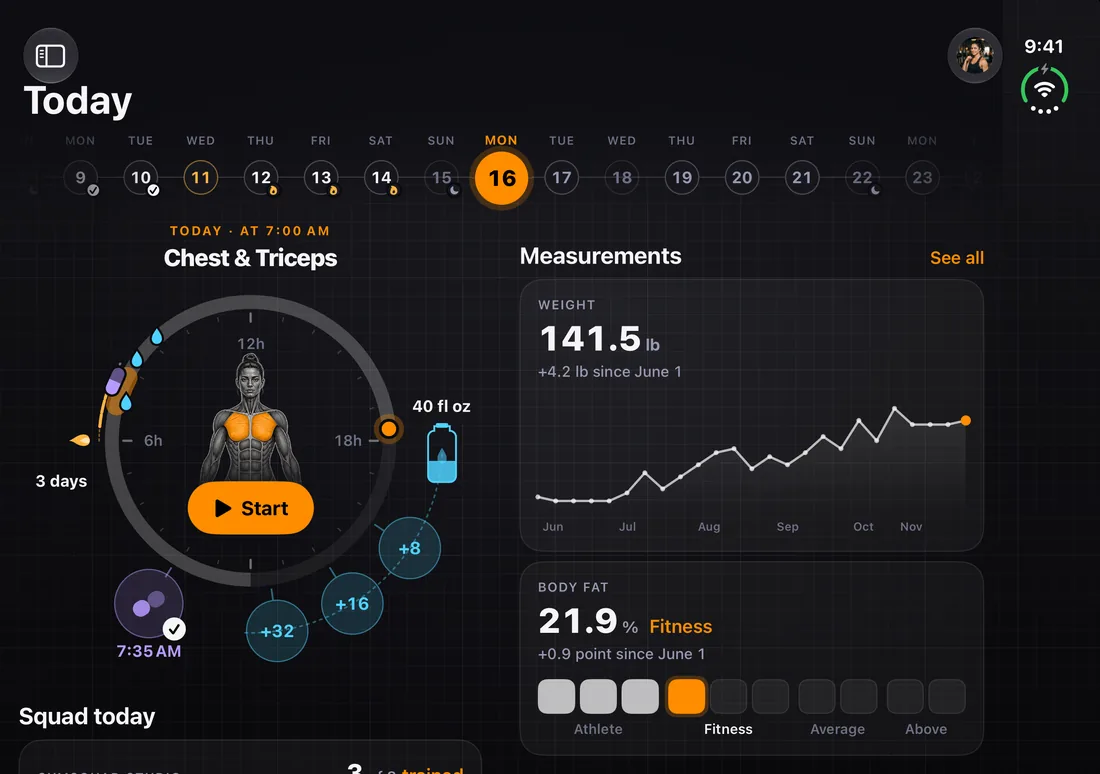
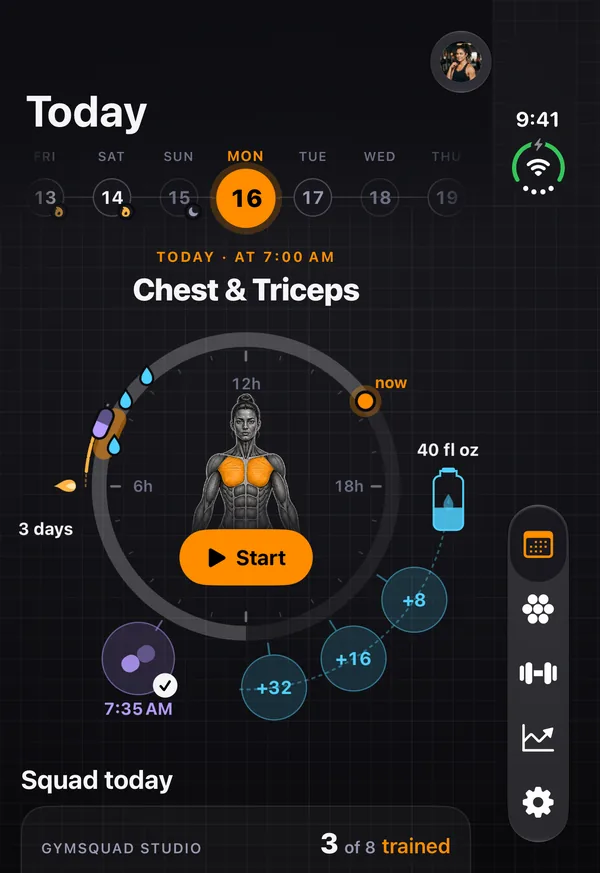
GymSquad switches layout when iPhone Duo folds or unfolds and stays on the screen you were on.

  1. 01
    FoldedThe iPhone tabs, with the day’s workout on the Today screen.
  2. 02
    UnfoldedToday goes full screen, with your measurements beside the day’s workout.
  3. 03
    Mid-workoutFolding or unfolding doesn’t interrupt anything: the workout in progress and the open tab carry over.
Fig. 11 · Explore squadsGymSquad · 11/12
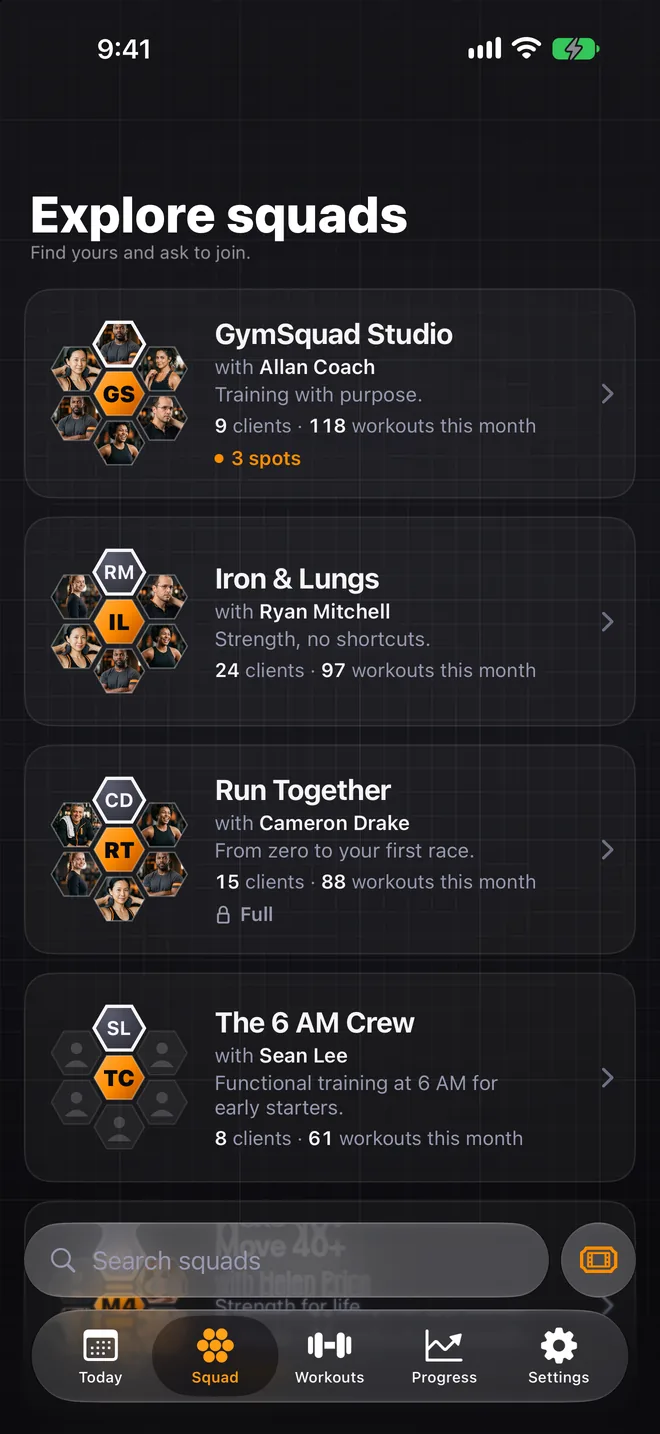
Explore squads: public squads with the coach, the number of clients, the workouts this month and the open spots
Demo data

For those training without a coach

No coach yet? Find a squad.

See each squad’s coach, open spots and workouts, and ask to join.

  1. 01
    Search by nameOf the squad or of the coach.
  2. 02
    Spots in sightThe card says when few are left and when the squad is full.
  3. 03
    Request with a noteAn optional message goes along, and the request can be canceled while it waits.
Fig. 12 · PlansGymSquad · 12/12

What it
costs.

Designing workouts and following the squad is free for the coach. The coach’s subscription includes the Basic plan for each client; without it, each client picks their own plan.

01Coach

Coach

Basic included for up to 15 clients.

  • Monthly$7.99/month
  • Yearlyworks out to $5.00/month$59.99/year

1 month free, no card required.

02Coach

Coach Pro

Basic included for every client, with no cap.

  • Monthly$14.99/month
  • Yearlyworks out to $10.00/month$119.99/year

1 month free, no card required.

03Client

Basic

Unlimited workouts, progress charts and scores.

  • Monthly$3.99/month
  • Yearlyworks out to $2.50/month$29.99/year

No free trial: billing starts when you subscribe.

04Client

Pro

Everything in Basic, plus building your own workouts and exercises.

  • Monthly$7.99/month
  • Yearlyworks out to $5.00/month$59.99/year

1 month free on your first client plan subscription. After that, billing starts on its own at the plan’s price.

These are the United States prices; each country sees its own in the app, and the price that counts is the one the App Store shows at purchase. You subscribe inside the app, through Apple, and it renews on its own until you cancel in Settings, under your name, in Subscriptions. All plan details

Time to train.

On iPhone, iPad and Apple Watch.

Download on the App Store